

Running the container#
Start the Docker container#
Whenever you need to restart the pylith-dev-workspace Docker container, simply run
docker run --name pylith-dev-workspace --rm -it -v pylith-dev:/opt/pylith \
    ghcr.io/geodynamics/pylith_installer/pylith-devenv
xhost +$(hostname).local
docker run --name pylith-dev-workspace --rm -it -e DISPLAY=host.docker.internal:0 \
    -v pylith-dev:/opt/pylith \
    ghcr.io/geodynamics/pylith_installer/pylith-devenv
xhost +$(hostname)
docker run --name pylith-dev-workspace --rm -it -e DISPLAY=host.docker.internal:0 \
    -v pylith-dev:/opt/pylith \
    ghcr.io/geodynamics/pylith_installer/pylith-devenv
Important
Make sure Docker is running before you start the container.
Attach VS Code to a running Docker container#
Start VS Code.
Click on the Docker extension in the Activity Bar on the far left hand side as illustrated in the screenshot.
Find the
pylith-dev-workspacecontainer. Verify that it is running.Right-click on the container and select
Attach Visual Studio Code. This will open a new window. You should seeContainer ghcr.io/geodynamics/pylith_installerat the left side of the status bar at the bottom of the window.Open the PyLith source code by selecting
File->Open Folder...and navigating to/opt/pylith/src/pylith.
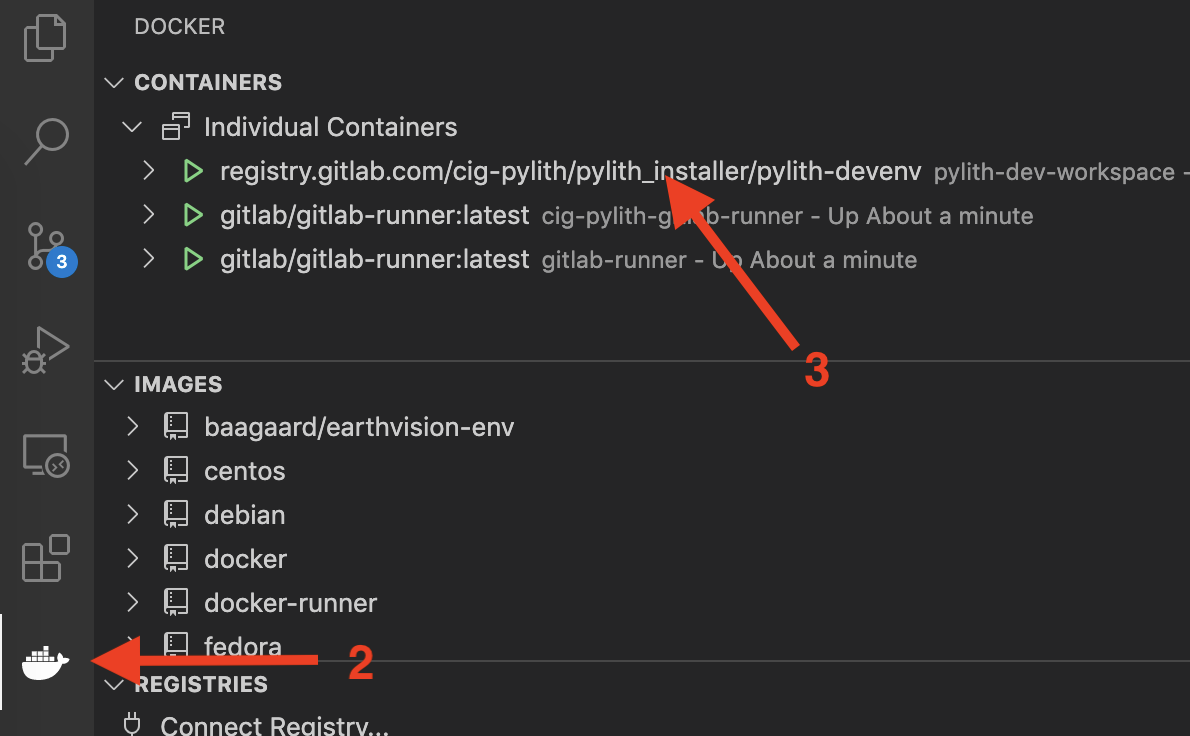
Fig. 1 Screenshot showing how to attach VS Code to a running Docker container.#
Attach a terminal ro a running Docker container#
docker exec -i -t pylith-dev-workspace /bin/bash